'%3e%3cpath%20d='M291.402%20416.77C291.402%20346.77%20244.735%20285.603%20221.402%20263.77C111.902%20141.27%20448.902%20207.27%20636.402%20359.77C823.902%20512.27%20618.902%20613.27%20448.902%20740.27C278.902%20867.27%20291.402%20504.27%20291.402%20416.77Z'%20fill='url(%23paint0_linear_7133_54115)'/%3e%3c/g%3e%3cg%20id='Vector%209'%20filter='url(%23filter1_f_7133_54115)'%3e%3cpath%20d='M1457.57%20671.77C1457.57%20601.77%201504.24%20540.603%201527.57%20518.77C1637.07%20396.27%201300.07%20462.27%201112.57%20614.77C925.071%20767.27%201130.07%20868.27%201300.07%20995.27C1470.07%201122.27%201457.57%20759.27%201457.57%20671.77Z'%20fill='url(%23paint1_linear_7133_54115)'/%3e%3c/g%3e%3c/g%3e%3cdefs%3e%3cfilter%20id='filter0_f_7133_54115'%20x='1.32773e-06'%20y='-9.19178e-07'%20width='910.974'%20height='966.944'%20filterUnits='userSpaceOnUse'%20color-interpolation-filters='sRGB'%3e%3cfeFlood%20flood-opacity='0'%20result='BackgroundImageFix'/%3e%3cfeBlend%20mode='normal'%20in='SourceGraphic'%20in2='BackgroundImageFix'%20result='shape'/%3e%3cfeGaussianBlur%20stdDeviation='100'%20result='effect1_foregroundBlur_7133_54115'/%3e%3c/filter%3e%3cfilter%20id='filter1_f_7133_54115'%20x='837.999'%20y='255'%20width='910.974'%20height='966.944'%20filterUnits='userSpaceOnUse'%20color-interpolation-filters='sRGB'%3e%3cfeFlood%20flood-opacity='0'%20result='BackgroundImageFix'/%3e%3cfeBlend%20mode='normal'%20in='SourceGraphic'%20in2='BackgroundImageFix'%20result='shape'/%3e%3cfeGaussianBlur%20stdDeviation='100'%20result='effect1_foregroundBlur_7133_54115'/%3e%3c/filter%3e%3clinearGradient%20id='paint0_linear_7133_54115'%20x1='155.902'%20y1='200.271'%20x2='592.902'%20y2='696.271'%20gradientUnits='userSpaceOnUse'%3e%3cstop%20stop-color='%230D3126'/%3e%3cstop%20offset='1'%20stop-color='%2393F0D3'/%3e%3c/linearGradient%3e%3clinearGradient%20id='paint1_linear_7133_54115'%20x1='1001'%20y1='1139.5'%20x2='1593.07'%20y2='455.27'%20gradientUnits='userSpaceOnUse'%3e%3cstop%20stop-color='%230D3126'/%3e%3cstop%20offset='0.622615'%20stop-color='%2393F0D3'/%3e%3c/linearGradient%3e%3c/defs%3e%3c/svg%3e)
Why AI design output looks generic
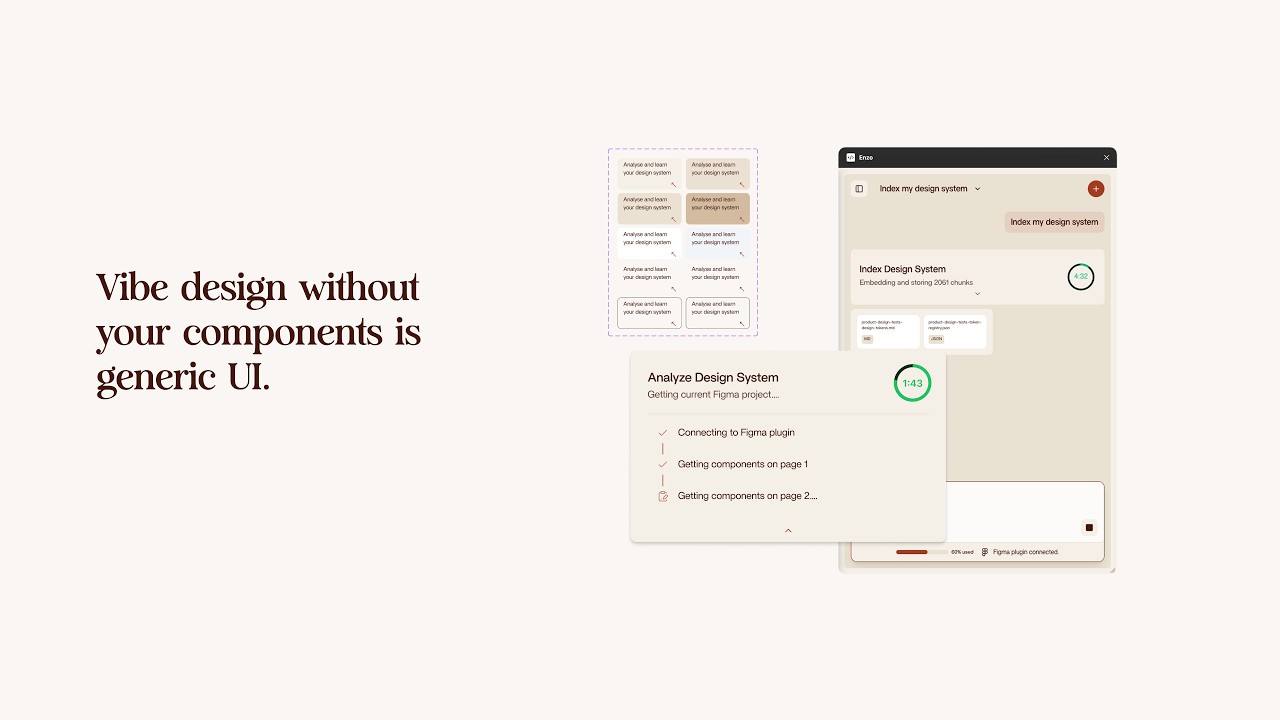
If you have tried using AI for design in Figma, you already know the result: random colors, random components, placeholder-quality layouts. It works fine for a first draft or quick ideation, but the moment you try to use it on a real project with an existing design system, the output is off.
The reason is simple. The AI has no context. It does not know your components, your variables, your spacing tokens, or your text styles. It generates from scratch every single time.
Meanwhile, your manager is probably pushing you to use AI everywhere. But if AI design tools slow you down instead of speeding you up, what is the point?
That is the problem Index Design System solves.
What Index Design System does
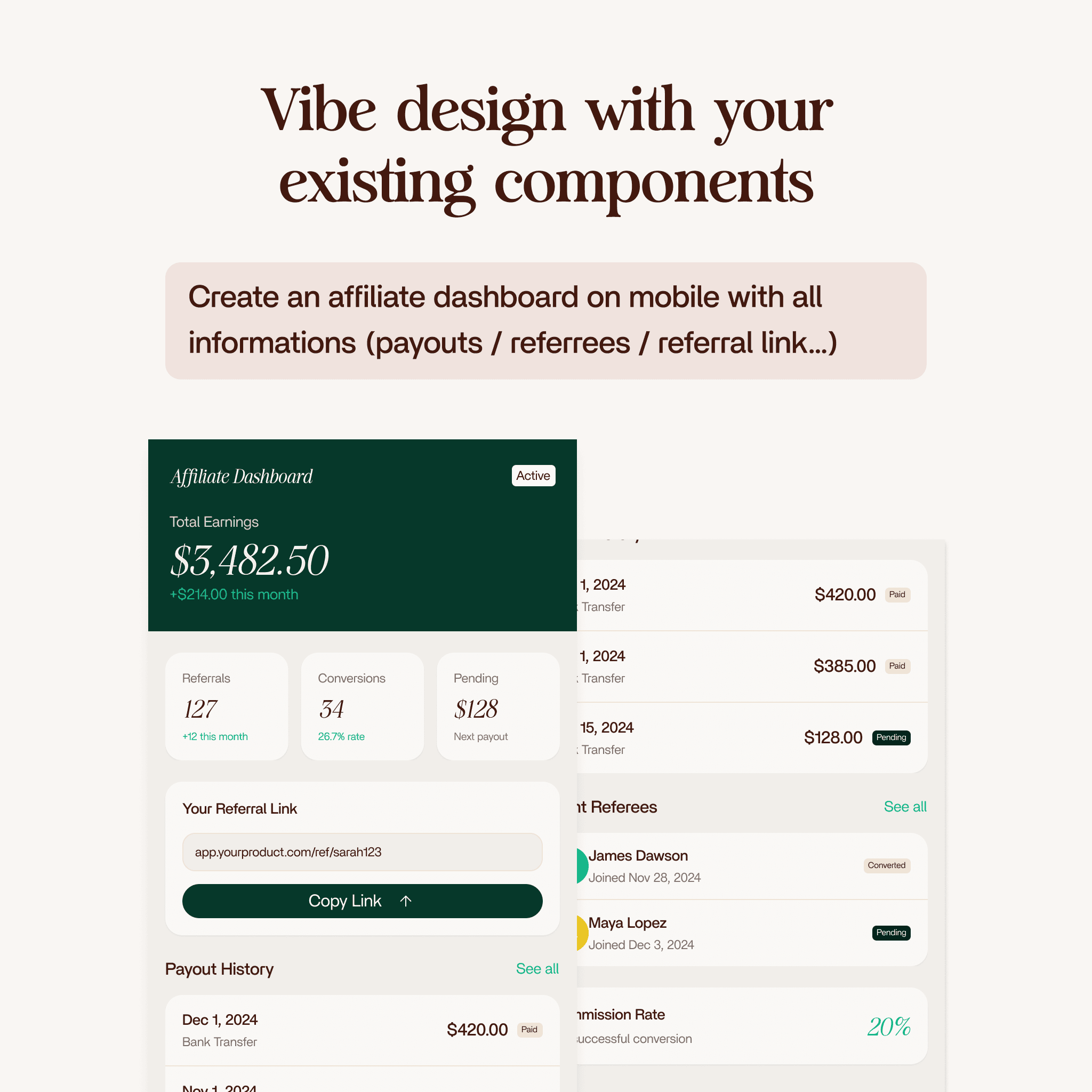
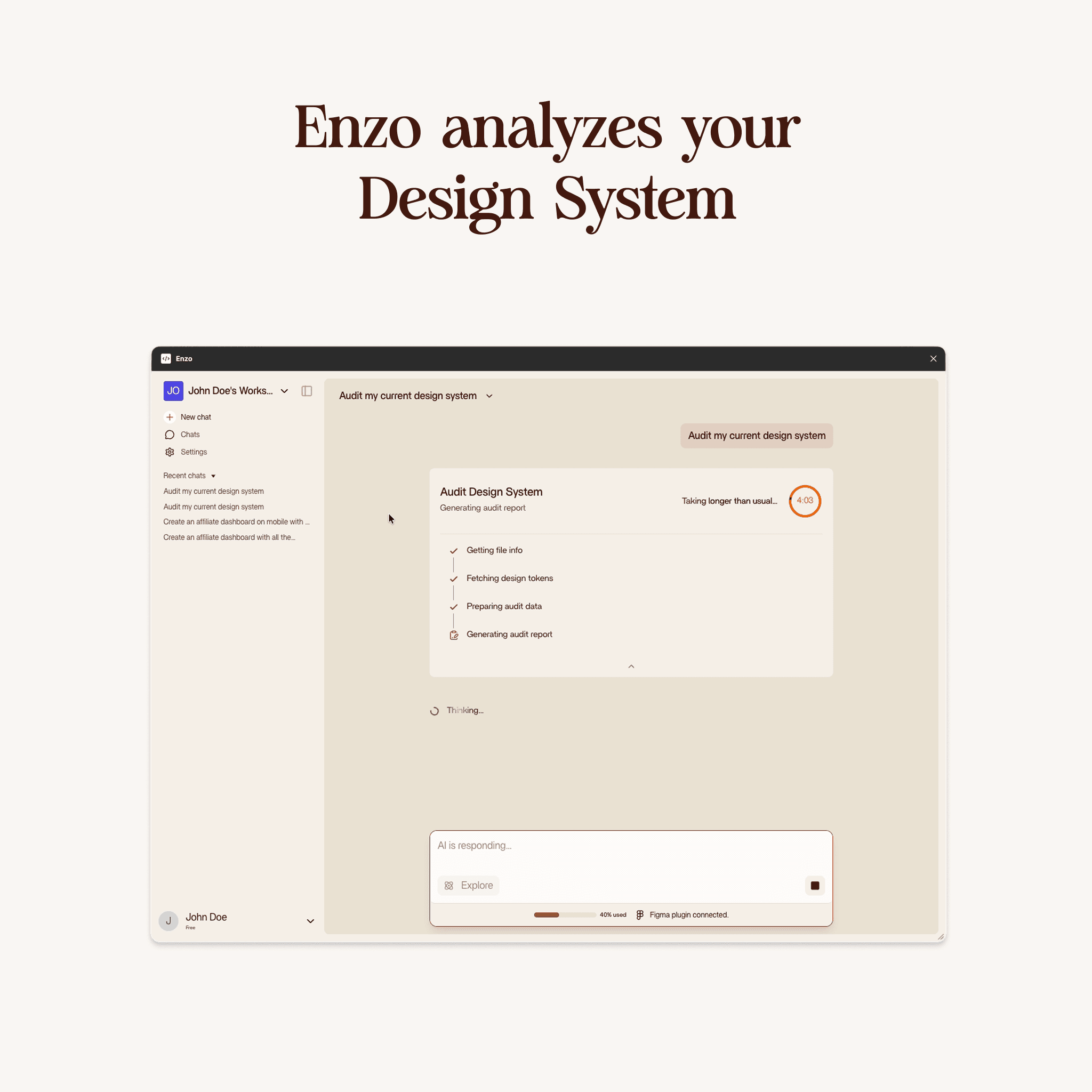
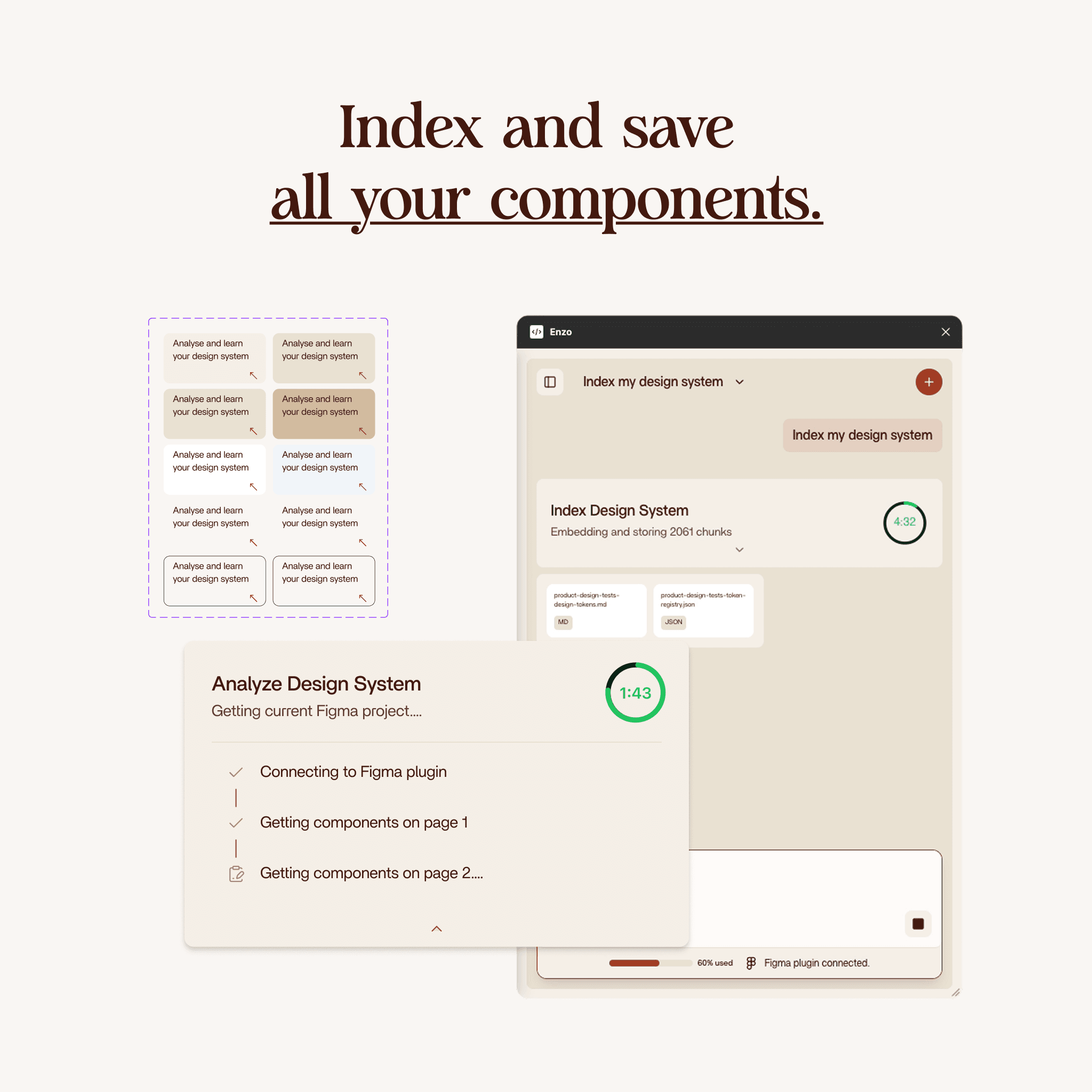
Index Design System reads your entire Figma project and saves everything the AI needs to know about your design system to Enzo's database. Once indexed, every other Enzo product (Create Design, Edit Design) works with your actual components and tokens instead of guessing.
You run it once per project. It takes about two to five minutes depending on the size of your file. After that, you can do real vibe design with your own design system.
Three layers of indexing
Enzo indexes your design system in three layers. Each one gives the AI a deeper understanding of how your project is built.
Layer 1: Components
Enzo fetches every component in your Figma file. Atoms, molecules, organisms, icons, all of it. You do not need to organize them yourself. Enzo reads your file structure and sorts them automatically.
In a typical project, this means hundreds of components and sometimes thousands of icons. Enzo separates icons from regular components so the AI knows the difference.
Layer 2: Tokens, variables, and styles
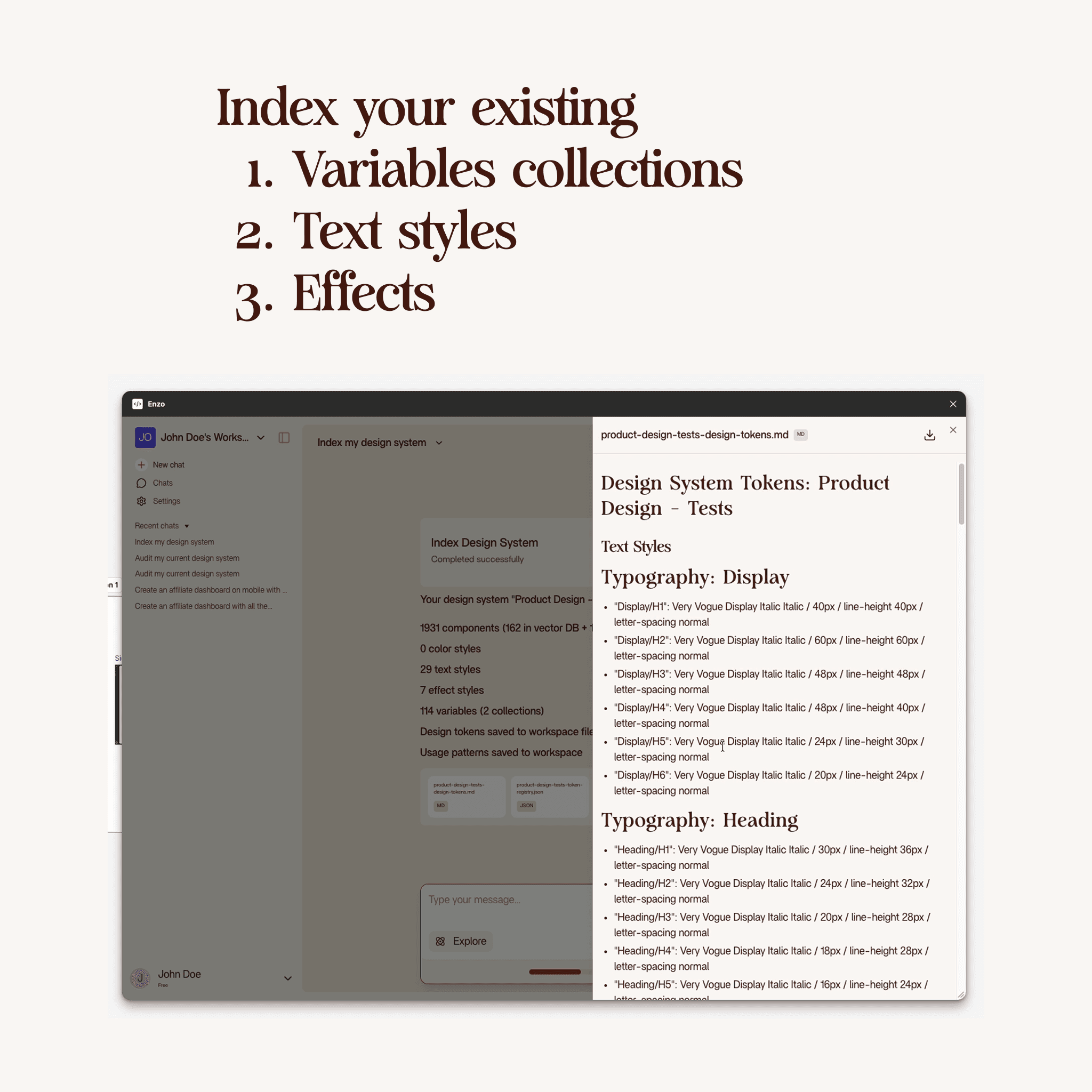
This layer captures your design tokens and variable collections. Colors, spacing, typography, shadows.
Enzo asks you which variable collections to index. This matters because some collections are just primitive references (like a raw color palette) that you never use directly in your designs. You pick the ones you actually use, like your semantic color tokens and spacing scale. Enzo skips the rest.
Text styles and effect styles (shadows, blurs) are also captured here. If you have five groups of text styles with six variants each, Enzo saves every one of them with the correct values.
Layer 3: Usage patterns
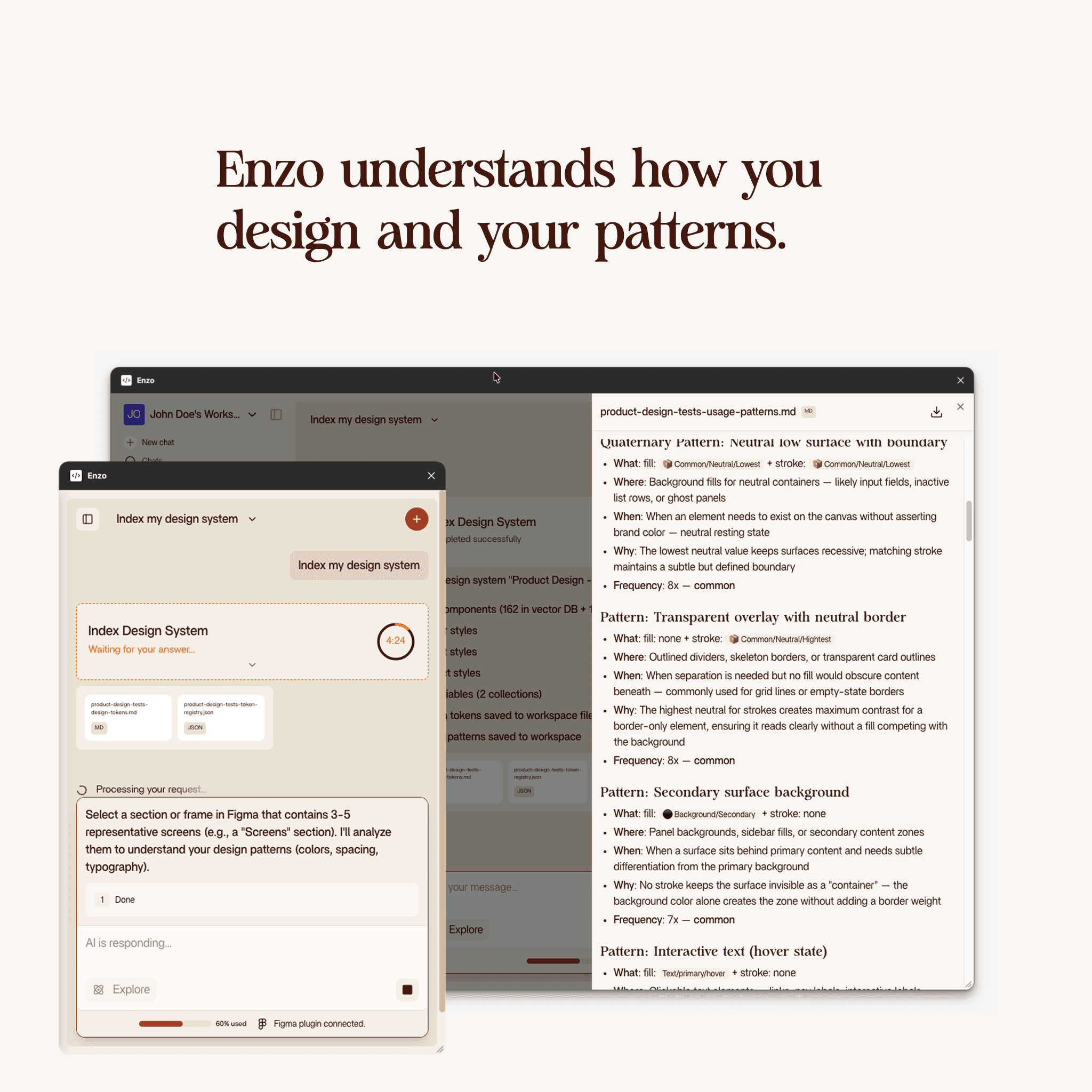
This is the most powerful layer. Enzo asks you to select three to five representative screens from your project. These should be typical screens you design day to day.
Enzo then analyzes your selection and reverse-engineers your design patterns. Which variables do you actually use? What spacing and padding values show up most? Are you using text styles consistently or raw values? Which color tokens appear on which surfaces?
The output is a detailed map of what you use, where you use it, why, and how often.
One thing to keep in mind: usage pattern analysis copies how you actually work. If you do not follow best practices strictly, the AI will pick up those habits too. It mirrors your real workflow, not an idealized version of it.
How long it takes
For a typical Figma project, indexing takes about two and a half minutes. Larger files with more components and variables might take up to five minutes. You only need to do it once per project.
Re-index when you make major changes to your design system, like adding new component sets or new variable collections. For minor tweaks, the existing index is fine.
What happens after indexing
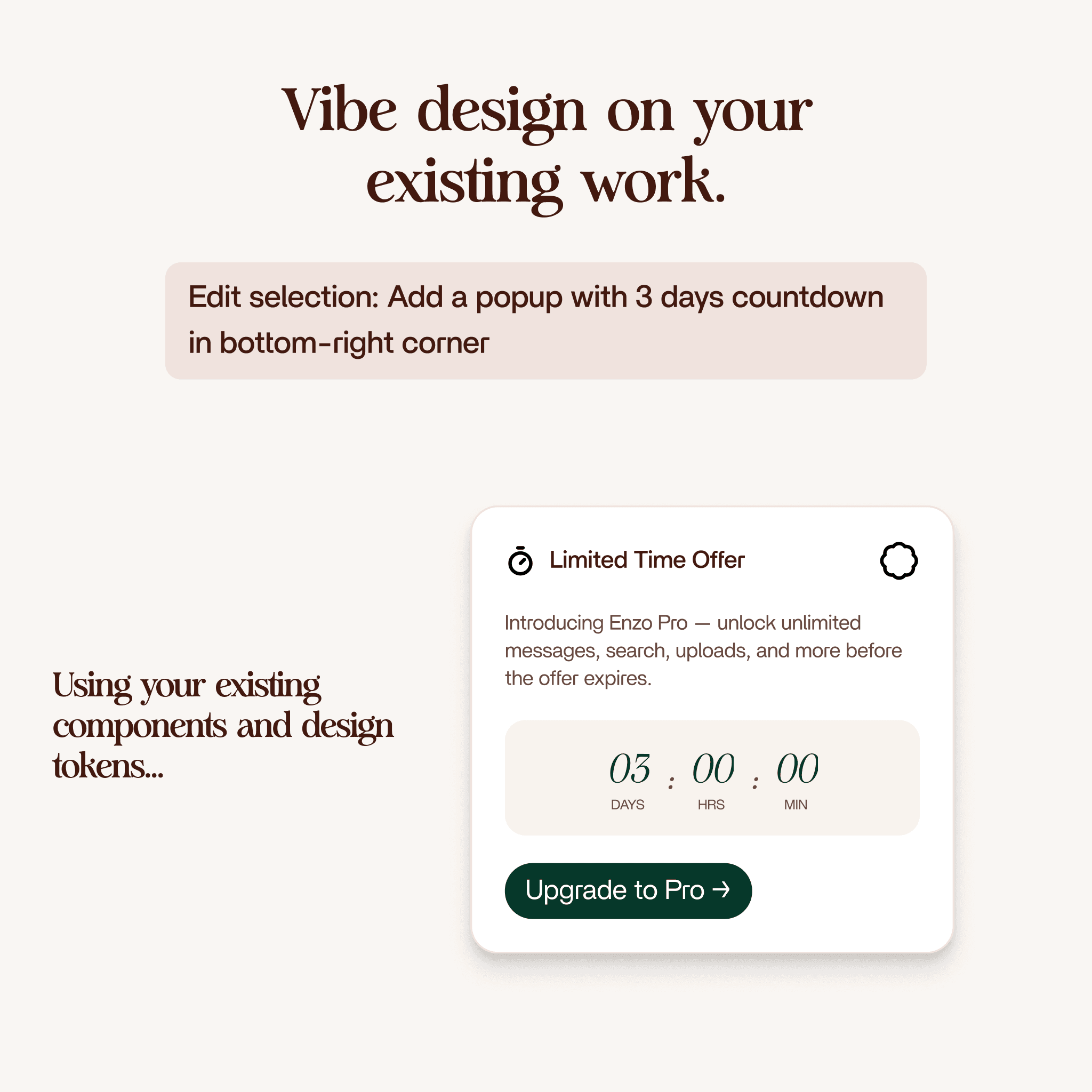
Once your design system is indexed, Enzo stores it in its database. From that point on, every design you generate with Create Design or edit with Edit Design will use your real components, your real tokens, and your real styles.
No more generic output. No more random colors. The AI finally has context.
Who should use this
Anyone working on an existing Figma project with a design system. Product designers, design system teams, anyone whose manager is asking them to use AI but who needs production-quality output, not prototype-quality guesses.
If you are starting a brand new project from scratch with no existing components, you can skip this step. But for any project with an established design system, this is where you start.
Getting started
Open your Figma project in Enzo, run Index Design System, and let it scan your file. Pick which variable collections to index when prompted. Select three to five representative screens for usage analysis. Wait two to five minutes.
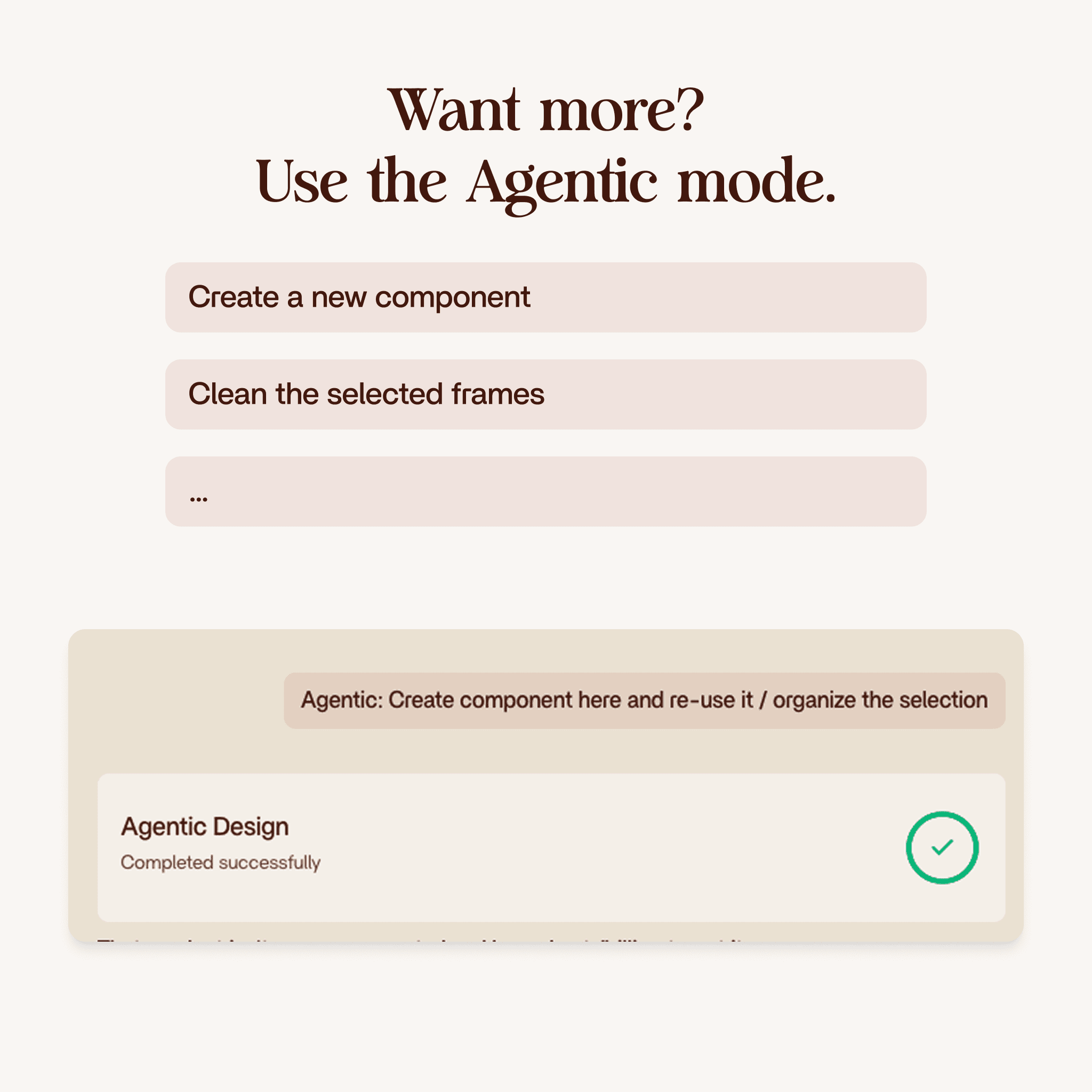
After that, you are ready to use Create Design and Edit Design with your actual design system. That is where the real value kicks in.